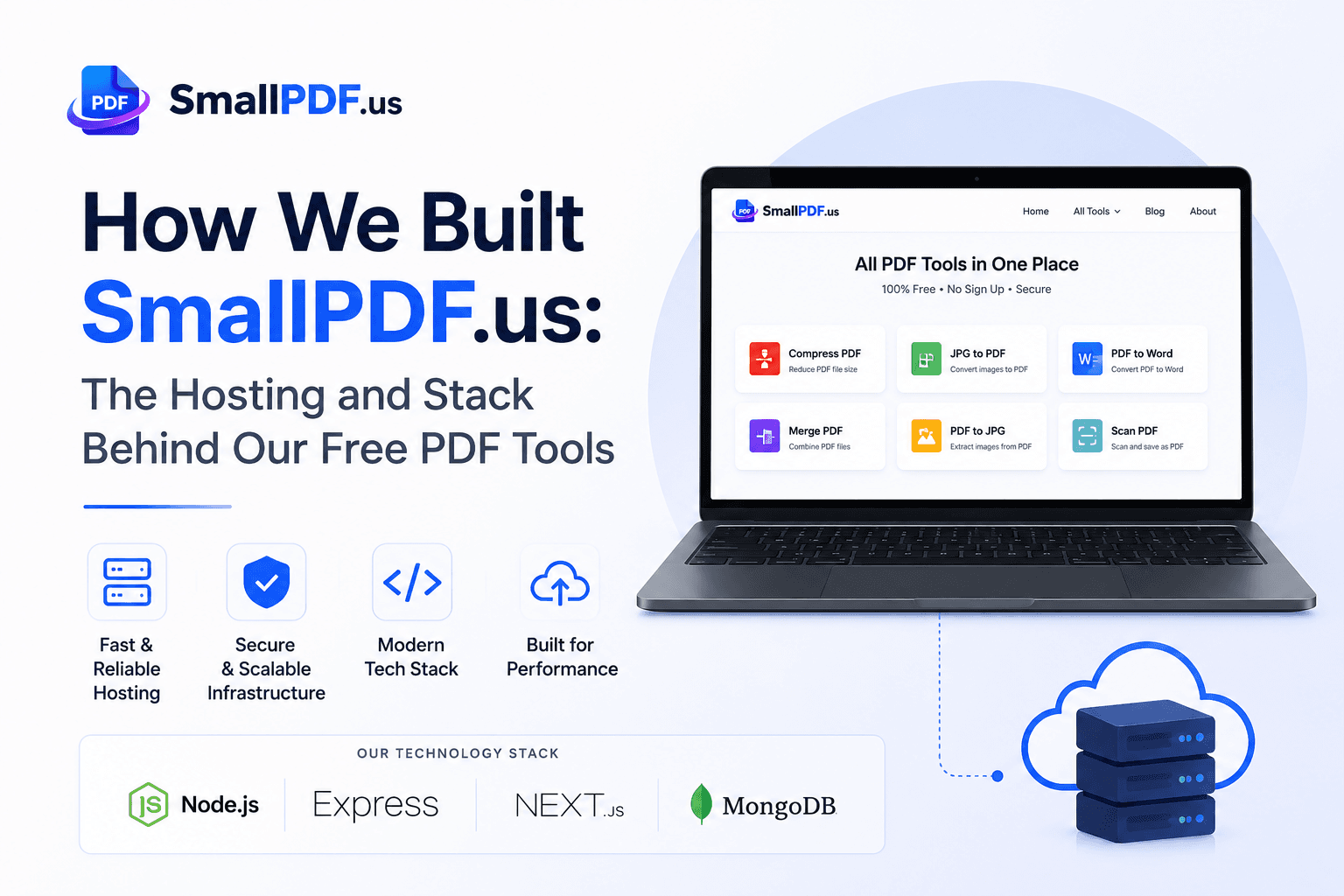
Most "how I built this" posts skip the boring part — the server. But if you're thinking about building your own free tool site, that's actually the part that decides whether it survives its first busy day or crashes the moment ten people upload a file at once. Here's exactly what SmallPDF.us runs on, why we picked it, and what we'd tell you before you spend a rupee.
Why a VPS, not shared hosting
Shared hosting is fine for a blog or a brochure site. It falls apart the moment your app does real work — and PDF processing is real work. Compressing a 50MB file, running OCR on a scanned document, or converting a PowerPoint to PDF all need actual CPU and memory for a few seconds at a time. Shared hosting plans throttle exactly that kind of burst usage, which is why our tools would randomly time out or hang if we tried to run them there.
A VPS (Virtual Private Server) gives you a dedicated slice of CPU, RAM, and disk that's yours alone — nobody else's traffic spike slows you down, and you're not fighting shared limits when five people compress a PDF at the same time.
What we actually run
SmallPDF.us runs on a Hostinger VPS. A few practical reasons that plan works for a site like this:
- Enough RAM headroom to run multiple Node.js processes side by side (we run the frontend, the API, and background cleanup jobs all on one box)
- NVMe storage, which matters more than people expect — file uploads, temporary conversion files, and database reads all hit disk constantly on a tool site
- Root access, so we can install exactly what conversion libraries and dependencies each tool needs, instead of being stuck with whatever a shared host allows
For context on cost: a VPS plan with enough resources for a small-to-medium tool site typically runs $5-15/month to start, which is a lot cheaper than people assume before they check.
The stack on top of it
The server itself is just the foundation. On top of it:
- Next.js for the frontend — handles all 24 tool pages, SEO, and the multi-language support
- Node.js + Express for the backend API that actually does the file conversion work
- SQLite for the database — simple, file-based, and plenty fast for a site this size (no need for a separate database server)
- PM2 to keep the Node processes running and auto-restart them if anything crashes
- Nginx in front of everything, handling SSL and routing traffic to the right service
None of this is exotic. The point isn't to use fancy technology — it's to pick boring, reliable tools that don't need babysitting.
What we'd tell you before you start
Auto-delete your uploaded files. A tool that processes user files will fill up your disk fast if you don't clean up after every job. We auto-delete everything within 2 hours.
Rate-limit everything from day one. The first thing that will hit your server hard isn't real traffic — it's bots and scrapers. Build rate limiting in before launch, not after your VPS falls over.
Start smaller than you think you need. You don't need a huge server on day one. It's much easier to upgrade a VPS plan later than to pay for capacity you're not using yet.
Frequently Asked Questions
Do I need a VPS to start, or can I use shared hosting first?
If your site is genuinely doing file processing (not just serving static pages), skip shared hosting. It'll cost you more in frustration than a VPS costs in dollars.
How much traffic can a basic VPS handle?
It depends entirely on what each request does. A VPS that handles thousands of simple page views easily might struggle with a few dozen simultaneous PDF conversions, because conversion work is CPU-heavy in a way page views aren't.
Is it hard to set up if I'm not a sysadmin?
It's more approachable than it sounds. Most providers, including Hostinger, offer one-click app installs and managed panels that handle the basic server setup — you don't need to be a Linux expert to get a Node.js app running.
Building your own tool site isn't magic — it's a normal web app with a few extra things to think about around file handling and cleanup. If you're thinking about it, the hosting decision is the first real one to make, and it's worth getting right before you write a line of code.
Advertisement
Share this article
Manikant
Writing practical guides on PDF tools, file conversion, and document workflows.
More articlesRelated Articles
PDF vs Word: Which Format Should You Use and When?
A clear rule of thumb for choosing between PDF and Word, plus how to convert between them when you need to.
How to Password Protect a PDF (Step-by-Step Guide)
Password-protecting a PDF takes under a minute and adds real AES-256 encryption. Here's how to do it properly.
How to Compress a PDF for Email Without Losing Quality
Email attachment limits are usually 10-25MB. Here's how to shrink a PDF in under a minute without a visible drop in quality.