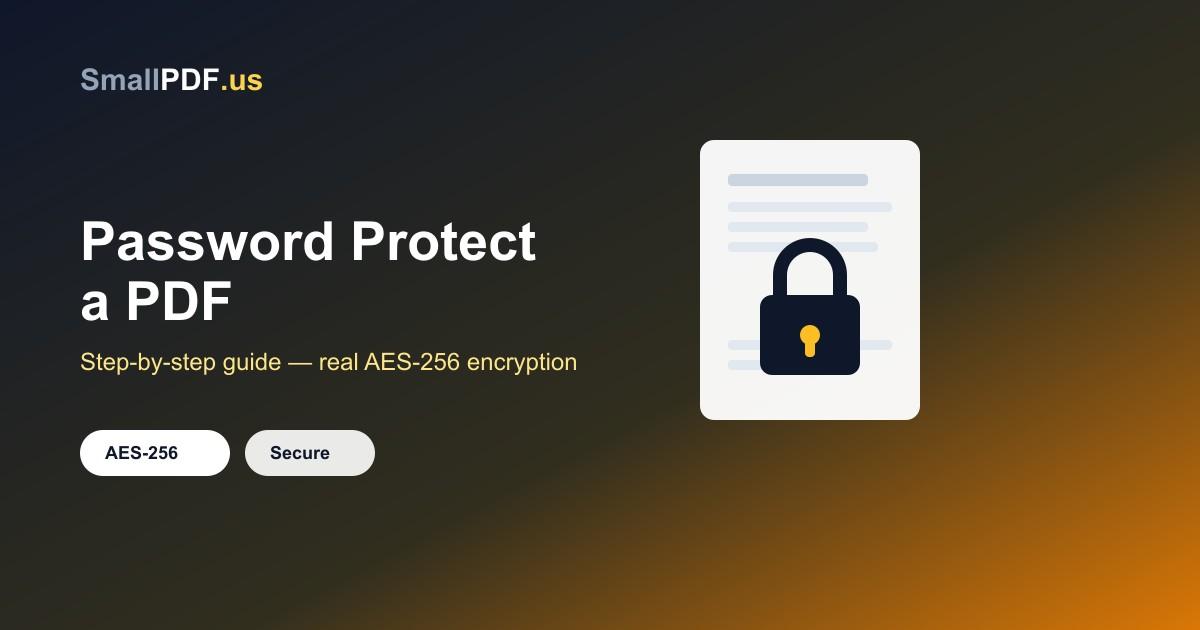
Contracts, tax documents, medical records, financial statements — a lot of what ends up as a PDF is exactly the kind of thing you don't want opened by anyone who stumbles across the file. Password-protecting a PDF takes less than a minute and means the document is useless to anyone without the password, even if it ends up in the wrong inbox or on a shared drive.
Here's how to do it properly, plus a few things worth knowing before you send a protected file.
Why Password-Protect a PDF
- You're emailing something sensitive — a signed contract, an ID scan, a payslip — and want a second layer of protection beyond "hope no one else checks that inbox"
- You're storing files on a shared or cloud drive where more people than intended might have access
- You're sending a document to a client or vendor and want to control who can actually open it
- Compliance or company policy requires sensitive documents to be encrypted before sharing
A password doesn't just add a polite request not to look — a properly protected PDF is genuinely encrypted, so the content is unreadable without the correct password.
Step-by-Step: Protecting Your PDF Online
- Open our Protect PDF tool
- Upload the PDF you want to secure
- Enter a password (see the section below on choosing a strong one)
- Download the protected file — that's the version you should send or store
The tool encrypts the file using AES-256, the same standard used by banks and government systems, so the protection is real, not cosmetic. Your original file and the password are never stored on our servers — everything is processed and then deleted.
Choosing a Strong Password
A weak password defeats the point of encrypting the file in the first place. A few practical guidelines:
- Use at least 10-12 characters — longer is always stronger
- Mix letters, numbers, and a symbol or two
- Avoid anything guessable from the document itself — a contract's password shouldn't be the client's name or the date on the file
- Don't reuse a password you already use for email or banking — if the PDF password ever leaks, you don't want it exposing anything else
If you're sending the protected file to someone else, share the password through a different channel than the file itself — a text message or phone call, not the same email thread. If both travel together in one email, the password offers no real protection.
What If You Need to Remove a Password Later
If you already know the password and just need to remove it — say, the document no longer needs to be restricted, or you're the one who set the password and now need an unlocked copy for internal use — our Unlock PDF tool removes it in seconds.
One important note: this only works when you have the password. There's no way to bypass or recover a password you've genuinely lost — that's exactly what makes the encryption meaningful. If you're setting a password on an important document, keep a copy of it somewhere safe (a password manager, not a sticky note).
A Few Things Password Protection Won't Do
- It won't stop someone from screenshotting or photographing the content once they've entered the correct password
- It doesn't watermark or track the document — protection just controls who can open it
- If you need to prevent editing or printing specifically (rather than restrict opening), that's a different kind of PDF permission — most protection tools, including ours, focus on the "who can open this file" layer, which is what matters for the vast majority of sensitive-document use cases
Frequently Asked Questions
Is browser-based PDF protection actually secure?
Yes, as long as the file is transferred over an encrypted connection (look for https) and the service doesn't retain your files or passwords afterward — both are true here. The encryption applied to the PDF itself (AES-256) is independent of how you accessed the tool.
Can I protect multiple PDFs with the same password?
You can, though for genuinely sensitive documents it's better practice to use a unique password per file or per recipient — that way, if one password is ever compromised, it doesn't expose everything else.
Will the recipient need special software to open a protected PDF?
No — any standard PDF reader (Adobe Reader, Preview, browser PDF viewers, etc.) will prompt for the password and open the file normally once it's entered correctly.
Protecting a PDF takes about as long as it took to read this article. Try it on your next sensitive document with our free Protect PDF tool.
Advertisement
Share this article
Manikant
Writing practical guides on PDF tools, file conversion, and document workflows.
More articlesRelated Articles
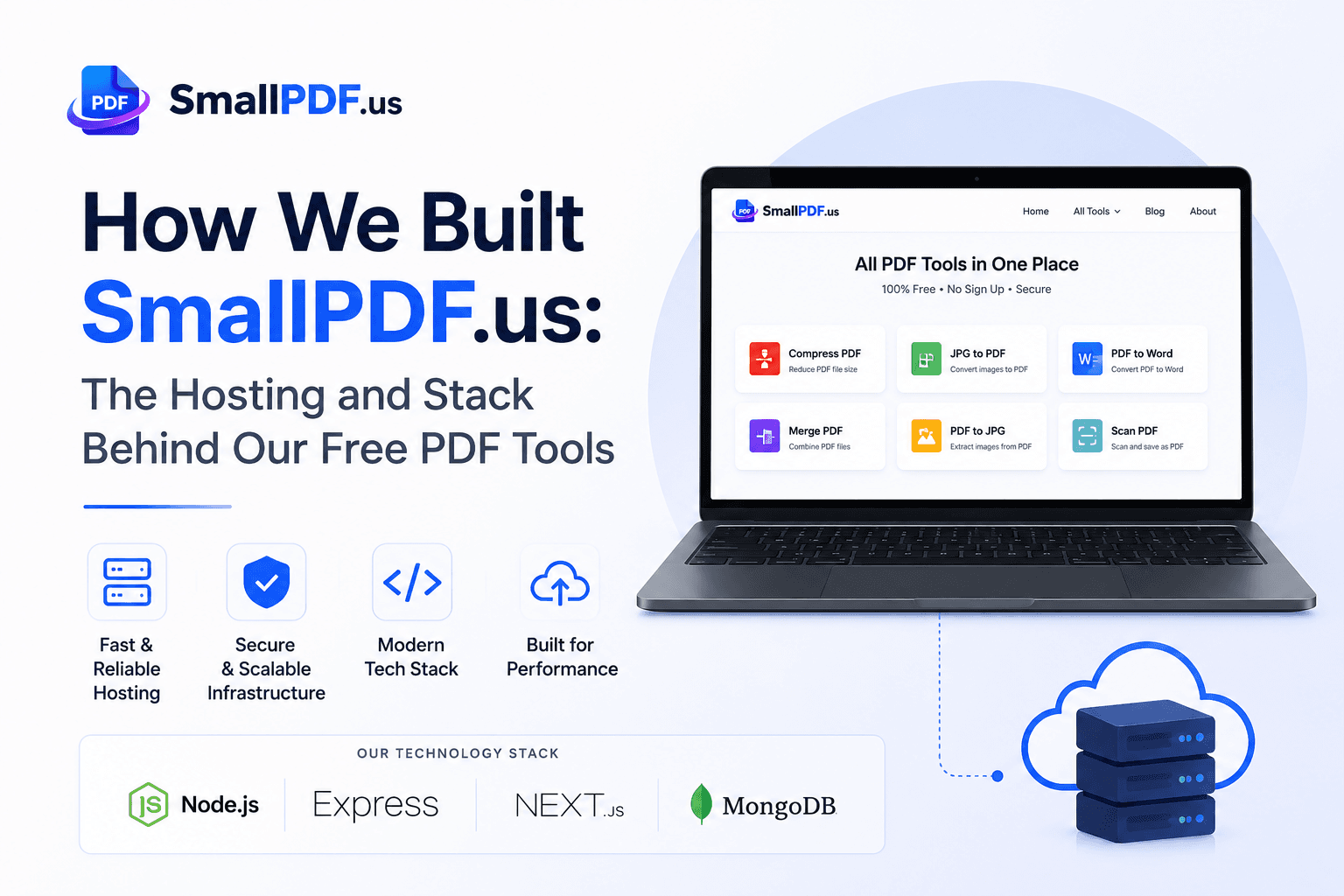
How We Built SmallPDF.us: Hosting & Tech Stack
A behind-the-scenes look at the VPS, tech stack, and lessons learned running a free PDF tools platform — plus what we'd tell you before you build your own.
PDF vs Word: Which Format Should You Use and When?
A clear rule of thumb for choosing between PDF and Word, plus how to convert between them when you need to.
How to Compress a PDF for Email Without Losing Quality
Email attachment limits are usually 10-25MB. Here's how to shrink a PDF in under a minute without a visible drop in quality.