If you've ever tried to email a PDF and gotten a bounce-back message saying the file is "too large to send," you're not alone. Most email providers cap attachments somewhere between 10MB and 25MB, and it doesn't take much — a scanned contract, a few high-resolution photos, a design proof — to blow past that limit.
The good news: you almost never need the file at its original size to send it. Compressing a PDF for email usually takes under a minute and, done right, the recipient won't notice any difference in quality.
Why Emails Reject Large PDFs
Email attachment limits exist because mail servers weren't built to move huge files efficiently — every attachment gets copied and stored multiple times as it travels from your outbox to the recipient's inbox. Common limits look like this:
- Gmail: 25MB per email
- Outlook / Microsoft 365: 20MB (sometimes 10MB on older plans)
- Yahoo Mail: 25MB
- Many corporate mail servers: 10MB or less
If your PDF is anywhere near these numbers, there's a good chance it either gets rejected outright or silently fails to send.
How to Compress a PDF for Email in Under a Minute
You don't need Adobe Acrobat or any desktop software for this. Here's the fastest way:
- Go to our Compress PDF tool
- Drag in your file (or click to browse)
- Pick a compression level — "Recommended" works for most email use cases
- Download the smaller file and attach it to your email
The whole process runs in your browser and the file is processed securely — nothing is stored longer than needed, and it's auto-deleted from our servers afterward.
What Actually Makes a PDF Large
Understanding what bloats a PDF helps you avoid the problem next time:
- High-resolution images embedded at print quality (300 DPI) when 150 DPI is plenty for screen viewing
- Scanned pages saved as full-color images instead of black-and-white or grayscale
- Embedded fonts, especially if the same font is embedded multiple times across pages
- Leftover metadata, layers, or annotations from editing software
A 20-page contract with a company logo on every page can easily hit 15-20MB if the logo image wasn't optimized before being placed in the document.
Which Compression Level Should You Pick
Most compression tools, including ours, offer a few levels:
- Light compression keeps quality nearly identical to the original — best if the PDF has diagrams, screenshots with fine text, or anything you might print
- Recommended (balanced) compression is the right default for email — it typically cuts file size by 60-90% with no visible quality loss on screen
- Strong compression pushes file size down further and is best when you just need the file under a hard limit and image quality isn't critical
If you're not sure, start with the recommended setting. You can always compress again with a different level if the result isn't small enough.
Other Ways to Shrink a PDF Before You Even Compress It
If compression alone doesn't get you under the limit, a few quick fixes often help:
- Remove blank or unnecessary pages before compressing — use our Split PDF tool to extract only the pages you need
- If you're scanning a physical document, scan at a lower resolution (150-200 DPI is fine for text documents) instead of compressing a huge scan afterward
- Combine only what's needed — if you're merging several files, check whether the recipient actually needs all of them in one PDF
Frequently Asked Questions
Will compressing noticeably reduce quality?
At the recommended setting, most people can't tell the difference on screen. Compression mainly targets image data, which is usually the biggest contributor to file size — text and vector graphics stay sharp.
Is it safe to upload a PDF with sensitive information?
Yes. Files are transferred over an encrypted connection, processed, and automatically deleted from our servers within a set time window — we don't keep copies or share your documents.
What if the file is still too big after compressing?
Try a stronger compression level, or check whether the PDF actually needs to be one file — splitting it into smaller parts and sending only the relevant pages is often the better fix for very large documents.
Compressing a PDF for email is one of those small tasks that saves a surprising amount of back-and-forth. Try our free PDF compressor next time a file bounces back — no signup, no software to install, and your file stays private.
Advertisement
Share this article
Manikant
Writing practical guides on PDF tools, file conversion, and document workflows.
More articlesRelated Articles
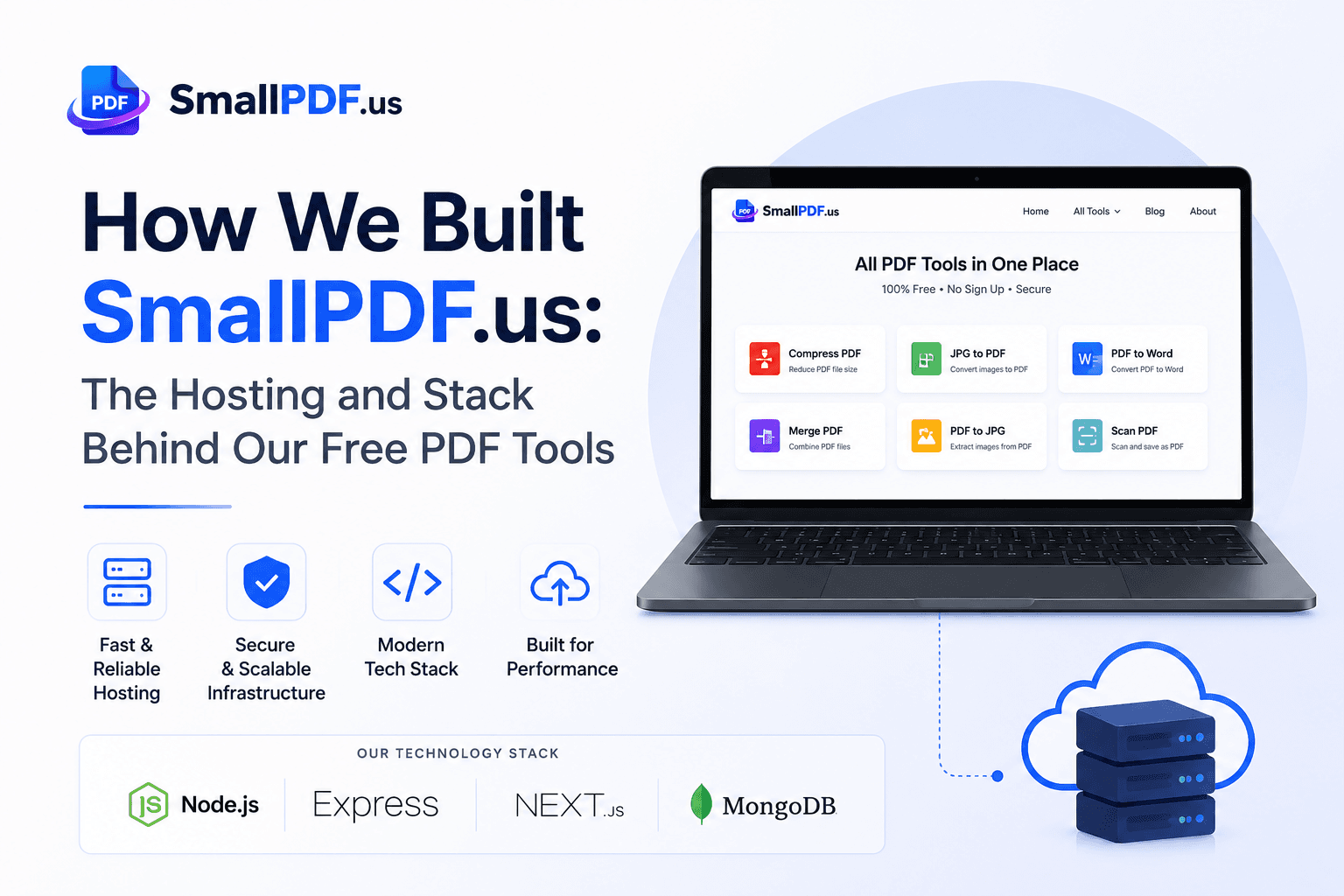
How We Built SmallPDF.us: Hosting & Tech Stack
A behind-the-scenes look at the VPS, tech stack, and lessons learned running a free PDF tools platform — plus what we'd tell you before you build your own.
PDF vs Word: Which Format Should You Use and When?
A clear rule of thumb for choosing between PDF and Word, plus how to convert between them when you need to.
How to Password Protect a PDF (Step-by-Step Guide)
Password-protecting a PDF takes under a minute and adds real AES-256 encryption. Here's how to do it properly.